How to Download an Instagram Reel, Step by Step
October 12, 2026 · 5 min read
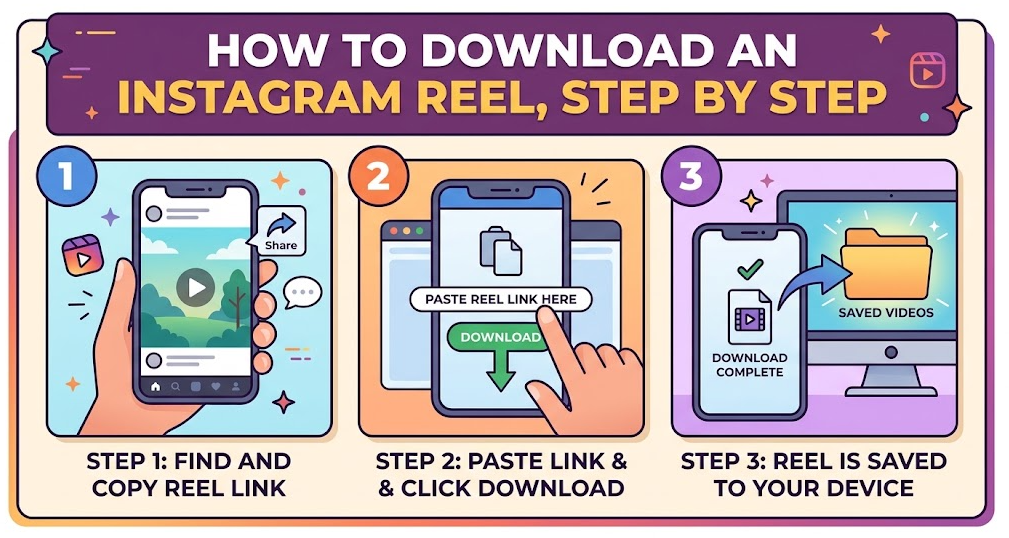
To download an Instagram reel, copy the reel's link, paste it into the VideoDropper Reels page, and tap download. It works with public reels only, and you get the best quality available from the original post, usually an MP4 with sound. It only takes a few taps on a phone or computer.
What you need before you start
- A reel from a public Instagram account. If you have to follow the account to see its posts, the reel is private and won't load.
- A phone or computer with a web browser, such as Safari on iPhone, Chrome on Android, or any desktop browser.
- Enough free storage for the file. Short reels are small, but longer ones can take up more space than you'd expect.
- Permission to save the reel. More on that near the end of this post.
Step by step: how to download Instagram reel videos
These steps are the same on iPhone, Android and desktop. Only the way you paste and where the file lands changes.
- Open Instagram and find the reel you want to save. Check that it comes from a public account.
- Tap the paper plane (Share) icon under the reel, then tap Copy link. On a computer, you can also copy the reel's address from the browser's address bar.
- Open the VideoDropper Reels page in your browser.
- Paste the link into the input box. On a phone, press and hold inside the box and choose Paste. On a computer, use Ctrl+V (Windows) or Cmd+V (Mac).
- Tap the download button. The page looks up the reel and shows the file when it's ready.
- Tap the download option for the video and save it. Your browser decides where the file goes, which is covered in the next section.
- Open the file and play a few seconds to check that the picture and sound both work.
The file is saved at the best quality available from the original post. The tool doesn't upscale, so a reel that was uploaded in low resolution will stay low resolution.
Where the file goes on iPhone, Android and computer
iPhone (Safari)
Safari usually asks whether you want to download the file and then puts it in the Downloads folder in the Files app. From there you can open it, share it, or save it to your camera roll if you want it next to your other videos.
Android (Chrome)
Chrome usually saves the file straight to your Downloads folder. Open your Files app, or tap the download notification, and the reel should play in your video app.
Windows or Mac
Your browser normally saves the reel to the Downloads folder. If you'd rather choose a folder each time, turn on the "ask where to save" option in your browser settings.
Why it might not work
The page says the reel can't be found
This almost always means the account is private, the reel was deleted, or the link was copied incompletely. Open the link in a private browser window. If Instagram asks you to log in to see it, the tool can't fetch it either. Copy the link again from the Share menu and try once more.
The link isn't a reel
Profile links and links to a tag page won't work, because they don't point to a single video. Open the reel itself, then copy its link. If you're trying to save a story, use the Stories page instead. Story and highlight downloads depend on the source and aren't guaranteed.
The video has no sound
Some reels are posted without an audio track, and some players start muted. Check your phone's volume and the silent switch first. If the original reel plays with sound on Instagram but your saved file doesn't, download it again and test it in a different player.
The file won't open
Reels are normally saved as MP4, which almost every phone and computer can play. If your player refuses it, open the file with another video app or your browser. Make sure the download finished, because a half-finished file on a weak connection won't play.
Saving only the audio from a reel
If you want the sound and not the picture, the Audio page saves it as an MP3 at 320 kbps. That bitrate is the best the tool offers, but the audio comes from Instagram's already compressed source, so it won't sound better than the original. For a longer look at the video and audio options, read MP4 vs MP3 for Instagram downloads.
Before you save a reel
Reels belong to the people who made them. Save a reel when it's your own, when you have the creator's permission, or when you're otherwise legally allowed to keep a copy. Re-posting someone else's reel as if it were yours, or using it commercially without permission, can break copyright rules. Our Terms and Disclaimer explain how the tool should be used.
Frequently asked questions
Can I download an Instagram reel from a private account?
No. VideoDropper only works with public posts. If a reel is private, nothing will load, and there's no way around that.
Why is my downloaded reel lower quality than I expected?
The tool saves the best quality available from the original post and doesn't upscale it. If the creator uploaded a low-resolution video, the file will look the same.
Can I save a reel's audio as an MP3?
Yes. Use the Audio page with the same reel link. The MP3 is 320 kbps, taken from the compressed audio of the original post.
Is it legal to download an Instagram reel?
It depends on whose reel it is and what you do with it. Saving your own content or content you have permission to use is fine. For anything else, check the creator's rights and read our Disclaimer.
Ready to try it? Open the Reels page, paste your link and save the file. If the reel has no sound or won't load, our post on fixing Instagram videos with no sound covers the most common causes. You can also check the FAQ for quick answers.